
Pairing Devices
Pairing Devices
Section titled “Pairing Devices”Pairing connects a physical display (a Sentinel tablet, a smart TV, a media player, or any browser-capable device) to your BrandCast account. Once paired, the display receives content automatically.
How Pairing Works
Section titled “How Pairing Works”BrandCast uses a device-flow handshake. The device generates a short code and shows it on screen. You enter that code in the admin dashboard to claim the device for one of your displays.
- Open the BrandCast display app on the device (Sentinel tablets do this automatically on boot; for other devices, navigate to
https://displays.brandcast.app). - The device shows a six-character pairing code on screen.
- In the admin dashboard, you start the pairing flow for a display and enter that code.
- The device transitions to its content view.
The code alphabet is uppercase letters and digits. The admin field shows a BC-XXXX placeholder, but you type only the characters shown on the device — don’t include the BC- prefix.
Pairing Flow
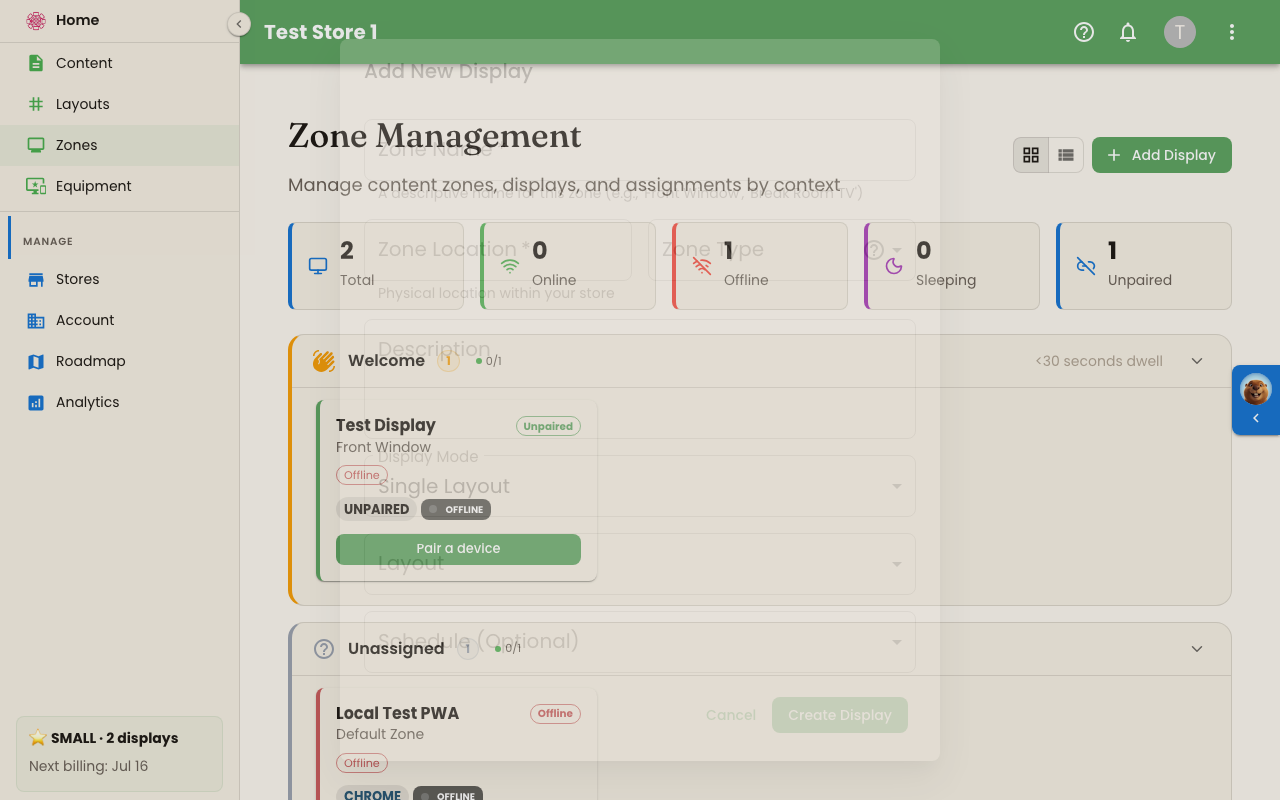
Section titled “Pairing Flow”Pairing always happens from the Zone Management page (sidebar: Zones). You can pair a brand-new display or swap the device on an existing one — both routes lead to the same pairing page.
Pair an unpaired display
Section titled “Pair an unpaired display”- On the Zone Management page, find the display card that shows the Unpaired status. Unpaired cards have a Pair a device button.
- Click Pair a device. The admin pairing page opens at
/pair. - Enter the six-character Pairing Code shown on the device.
- Confirm the Display Name (it’s pre-filled from the display record).
- Click Connect Device.
Swap the device on an existing display
Section titled “Swap the device on an existing display”When a screen’s hardware fails or is upgraded, you can move the display record onto new hardware without recreating it:
- On the Zone Management page, click the display card to open its Display Detail panel.
- Under Make a change, click Unpair · Change device on this display. This opens the same Connect a New Device page.
- Enter the new device’s six-character code and click Connect Device.
The new device takes over the display record. As the page notes, the display keeps its name, zone, schedule, and content — only the hardware behind it changes.
Once the device finishes claiming the display, it shows a Display Paired state.
What the Device Shows
Section titled “What the Device Shows”When a fresh device loads the display app it lands on a pairing screen showing a large pairing code, along with instructions pointing to the admin pairing URL. There is no input field on the device side — the device only displays the code; the pairing happens entirely in the admin dashboard.
Supported Devices
Section titled “Supported Devices”Sentinel tablets (recommended)
Section titled “Sentinel tablets (recommended)”Sentinel hardware ships pre-flashed with the BrandCast display app and pairs through the native bridge. Power one on, it lands on the pairing screen automatically, you enter the code in admin — no browser configuration, no kiosk-mode tweaks, no URL to remember.
Alternative: sideload deployment
Section titled “Alternative: sideload deployment”The same display app can be installed by hand on an Android tablet you already own — useful for demos, pop-ups, and venues that can’t wait on a hardware shipment. It pairs exactly as described above, but BrandCast can manage less of the device afterwards: the screen isn’t locked to the app, and Reboot is unavailable from the dashboard. Sideload deployment covers what changes and what becomes the venue’s job.
PWA-capable devices
Section titled “PWA-capable devices”Anything with a modern browser can run the display app. Common combinations:
- Smart TVs with built-in browsers (Samsung, LG WebOS, Sony Android TV, Vizio SmartCast)
- Streaming sticks paired with a browser app (Amazon Fire TV + Silk; Chromecast with Google TV + a third-party browser)
- Commercial signage players and mini PCs (Intel NUC, Raspberry Pi running Chromium, Windows PCs)
The setup on PWA devices is the same regardless of hardware:
- Open the browser on the device.
- Navigate to
https://displays.brandcast.app. - The pairing screen appears with a code on it.
- Enter the code in the admin dashboard.
For production deployments on PWA devices you typically also want:
- Sleep / screensaver disabled so the screen stays awake.
- The browser configured to launch on boot (true kiosk mode), full-screen, with popups blocked.
Network Requirements
Section titled “Network Requirements”| Requirement | Details |
|---|---|
| Ports | HTTPS (443) outbound to displays.brandcast.app and api.brandcast.app |
| Bandwidth | 5 Mbps minimum recommended |
| Stability | A reliable connection — pairing tolerates short blips but content delivery doesn’t |
Re-pairing and Swapping Hardware
Section titled “Re-pairing and Swapping Hardware”A display record outlives the hardware attached to it. You can change devices without recreating the display.
- Replace a failed device. Open the display’s detail panel and use Unpair · Change device on this display, then enter the new device’s code.
- Re-pair the same device after a wipe. The device shows a fresh pairing code on next boot. Use the same flow to claim it back to the display record.
- Disconnect a device entirely. Use Unpair · Change device on this display. The display returns to Unpaired status, and its card shows the Pair a device button again, ready for a new device.
Unpair vs. Delete: Unpairing only detaches the hardware — the display record, its zone, and its content stay. To remove the display entirely, use Delete Display in the panel’s Danger Zone.
Troubleshooting
Section titled “Troubleshooting”“Invalid code” / “Code expired” in admin
Section titled ““Invalid code” / “Code expired” in admin”- Make sure the code on the device matches what you’re typing.
- If the device has been showing the same screen for a while, reload it and use the fresh code.
- Make sure you’re not including the
BC-prefix — it’s a placeholder hint, not part of the code.
Device pairing screen never loads
Section titled “Device pairing screen never loads”- Confirm the device has internet and can reach
https://displays.brandcast.app(try opening it manually in another browser). - Check whether the device’s browser is too old to run a modern PWA — Smart TV browsers from before ~2019 often aren’t viable.
- For Sentinel hardware: confirm the native app launched (it should auto-start on boot); if not, factory reset the tablet and try again.
Code accepted in admin but display stays blank
Section titled “Code accepted in admin but display stays blank”- Wait 30–60 seconds for the first content sync.
- Confirm the display has a layout, playlist, or schedule assigned.
- Refresh the display device’s browser; sometimes the first sync needs a nudge.
Display shows “Offline” right after pairing
Section titled “Display shows “Offline” right after pairing”- Check the device’s network connection didn’t drop after the handshake.
- Confirm no firewall is blocking outbound 443.
What’s Next?
Section titled “What’s Next?”- Display Settings — Configure content source, zone, night mode, and timezone for the paired display
- Zone Management — Move the display into the right zone, assign content
- Troubleshooting — Deeper diagnostics for offline and stuck displays