
Setting up your screen
Every screen in BrandCast needs something to run on: the TV’s own web browser, or a BrandCast Player plugged into the TV. This article helps you choose, gets the screen ready to run all day, and connects it to the display you named during setup.
Choose how the screen runs
Section titled “Choose how the screen runs”| Web browser | BrandCast Player | |
|---|---|---|
| What it is | Any device with a modern web browser: a smart TV, a streaming stick, a mini PC | A compact 4K HDMI player that plugs into any TV |
| Plans | Free and Pro | Pro |
| Cost | Nothing extra | $129, from Equipment > Hardware |
| Starts on its own after a power cut | Only if you set up the device to do it | Yes |
| Controlled from BrandCast | Night mode, reduce motion, timezone | All of those, plus volume, brightness, orientation, HDMI source lock, and health readings |
Start with the browser if you already have a smart TV. Switch to a BrandCast Player when you want a screen that recovers by itself and can be managed fully from the dashboard.
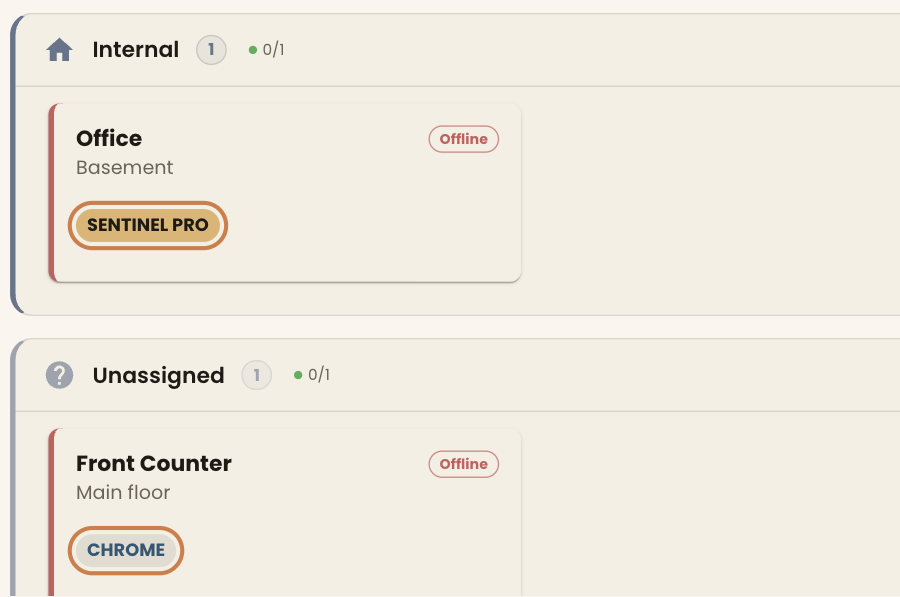
You can tell which kind each display uses from the label on its card under Zones: the browser’s name (such as CHROME) for a browser screen, SENTINEL PRO, SENTINEL MAX, or SENTINEL MINI for a BrandCast Player, and ANDROID for the BrandCast app installed by hand.
Installing the app on your own Android device? That works too, with less remote control. See Sideload deployment.
Use a web browser
Section titled “Use a web browser”Get the device ready
Section titled “Get the device ready”Do this once, in the TV’s or device’s own settings:
- Turn off sleep, the screensaver, and energy saving. BrandCast decides when the screen sleeps, but it can’t stop the TV from switching itself off.
- Make the browser open full screen. Most smart TV browsers have a full-screen or kiosk option. On a computer, use the browser’s full-screen mode.
- Open the browser when the device starts, if the device supports it, so the screen comes back after a power cut.
- Mount the TV the way your Design is shaped. A browser screen can’t be rotated from BrandCast, so a portrait screen needs a portrait Design. Choose the Screen shape when you create the Design. It can’t be changed later.
Your network needs to allow outbound HTTPS. A steady connection matters more than speed.
Connect it
Section titled “Connect it”-
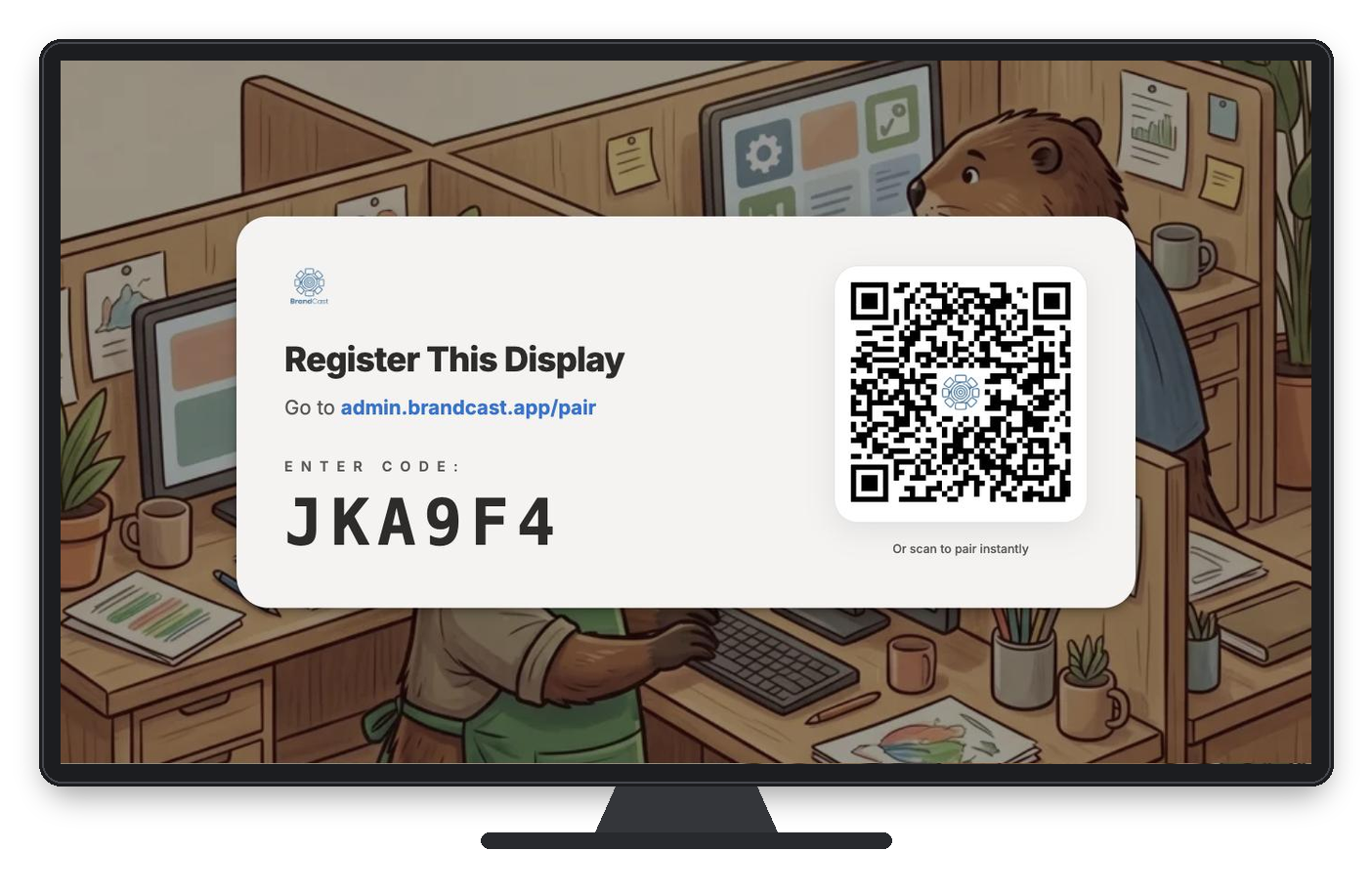
In the browser, go to displays.brandcast.app. The screen shows Register This Display and a six-character code.
-
In BrandCast, click Zones, then Pair a device on the display this TV belongs to.
-
Type the code into Pairing Code and click Connect Device.
The TV leaves the pairing screen within a few seconds and the display’s card shows Online.
Scanning the QR code? The code on the TV can also be scanned with your phone. The page it opens starts on New display, which creates an extra display. Choose Existing display and pick this screen under Display to connect before you click Connect Device.
The code changes every 15 minutes, so type the one the TV shows now. If the TV sits unpaired for a day, it shows Pairing Session Timed Out. Press RESUME PAIRING to get a new code.
Use a BrandCast Player
Section titled “Use a BrandCast Player”- Buy the player from Equipment > Hardware. It needs the Pro plan.
- Plug it into the TV’s HDMI port and into power, and connect it to your network.
- It starts on the pairing screen by itself. Connect it the same way as a browser screen: Zones > Pair a device > enter the code > Connect Device.
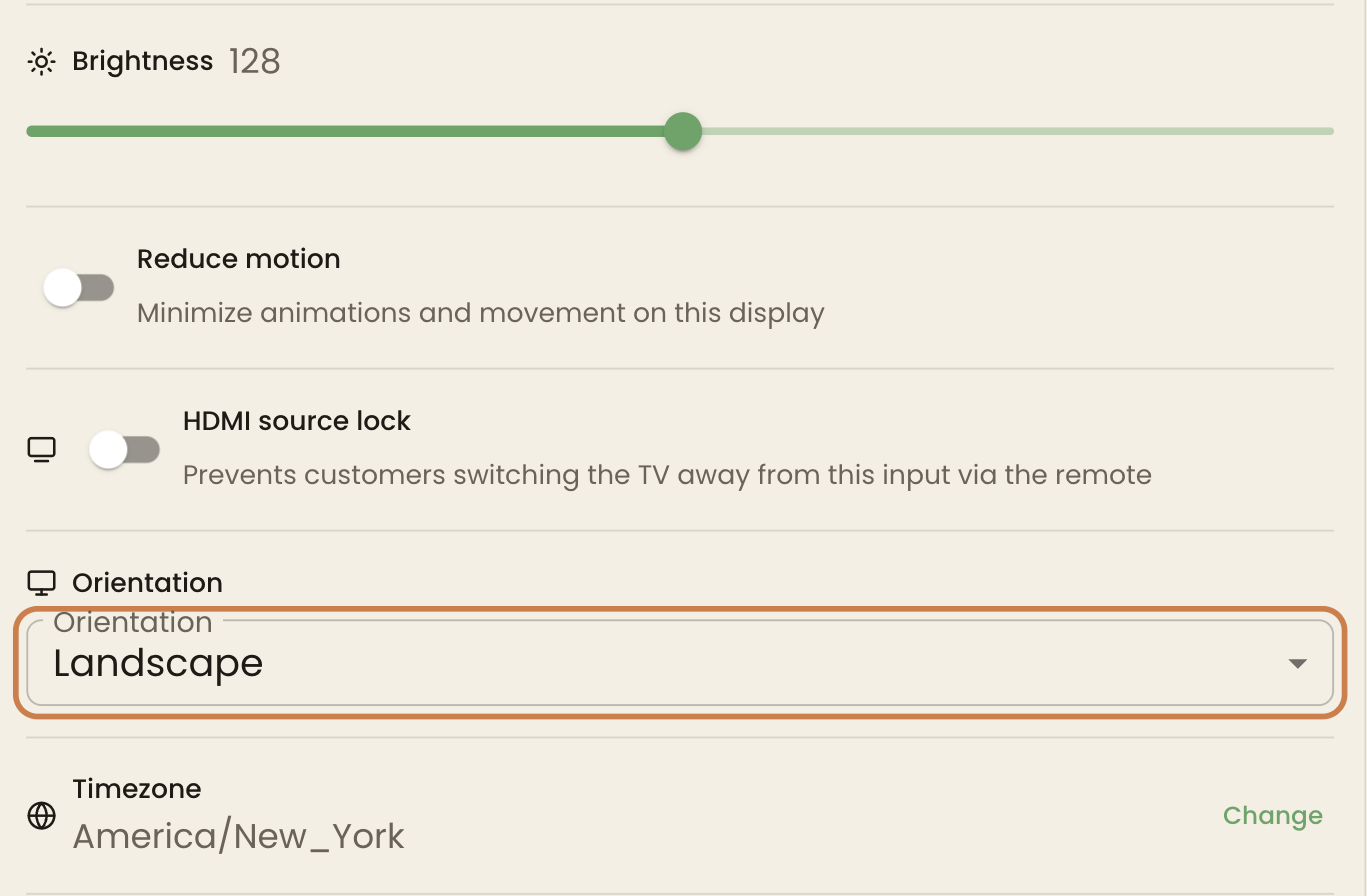
Once it’s paired, open the display under Zones to set its volume and brightness, lock the TV to its HDMI input, and rotate the picture. Orientation offers Landscape, Portrait, and the two upside-down versions, so you can mount the TV either way.
Every screen sleeps at night
Section titled “Every screen sleeps at night”Each display has a week calendar under Zones. The striped hours are night mode: the screen goes dark and shows Night Mode Engaged. Running a TV around the clock wears it out, so night mode can’t be turned off. Drag the line between the striped and clear hours to change when each day starts and ends.
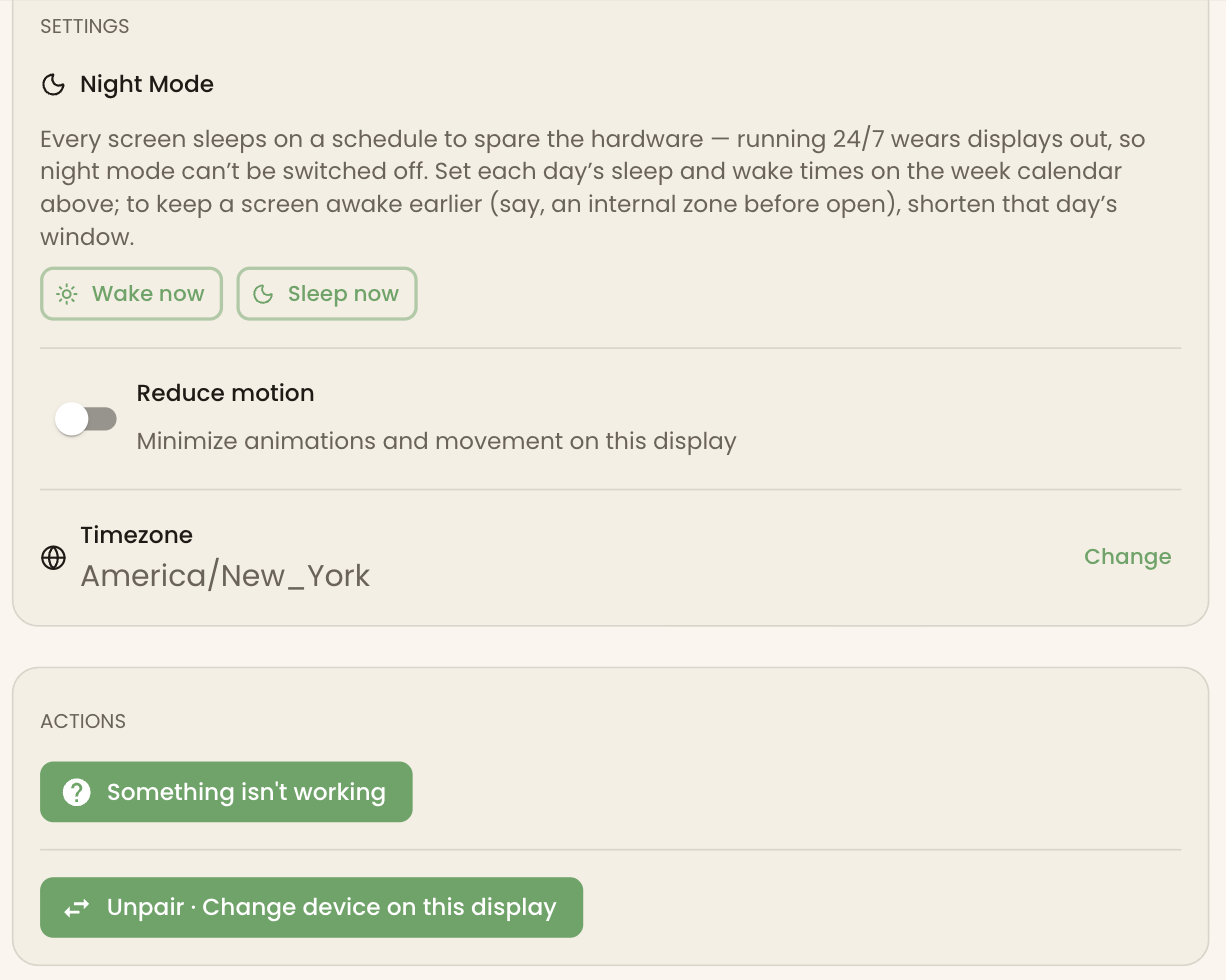
The display’s Settings card has Wake now and Sleep now for one-off changes, Reduce motion to calm animations, and the screen’s Timezone.
If something’s not right
Section titled “If something’s not right”The code doesn’t work. Check it against the code the TV shows now. Codes use letters and the digits 2–9, so there’s no zero or letter O, and no one or letter I.
The card shows Offline. Check the device’s internet connection, then reload displays.brandcast.app on it.
The TV turned itself off. Its own sleep or energy-saving setting is still on. Turn it off in the TV’s settings.
The picture is sideways or squashed. On a browser screen, create a Design with the right Screen shape and schedule it. On a BrandCast Player, change Orientation.
Hardware pairing says it needs a paid plan. The Free plan pairs browser screens only. Upgrade from Account > Billing.
What’s next
Section titled “What’s next”- Quick start guide: build a Page and schedule it on this screen
- Pairing devices: moving a display to new hardware
- Equipment: buying a BrandCast Player