
Equipment
Equipment
Section titled “Equipment”The Equipment page is your store for buying hardware and add-ons that extend your BrandCast account. You can purchase media players for your displays, buy AI generation credits to create images and videos, or expand your storage.
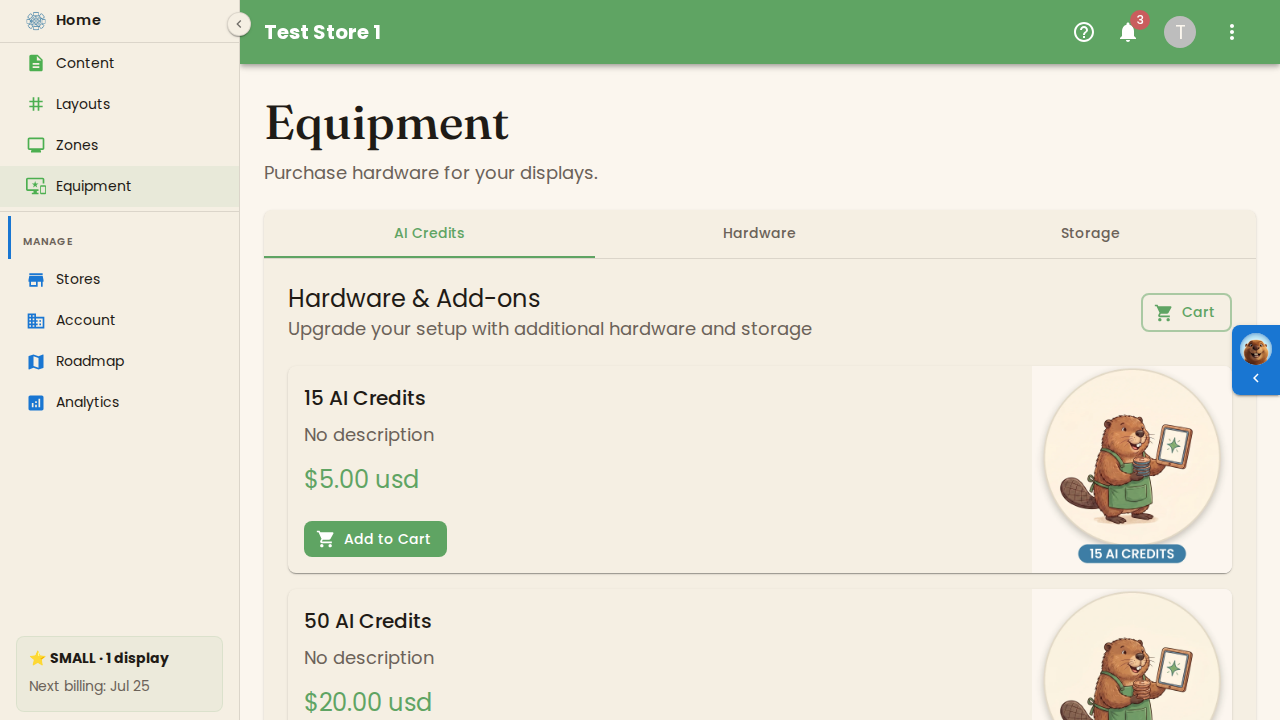
Products are split across three tabs — AI Credits, Hardware, and Storage — and everything you add goes into a single shopping cart for checkout.
Product Tabs
Section titled “Product Tabs”The page opens on the AI Credits tab. Use the tabs at the top to switch between categories. Each tab shows its products under the Hardware & Add-ons heading with the tagline “Upgrade your setup with additional hardware and storage.”
AI Credits
Section titled “AI Credits”Credit packs you spend on AI image and video generation. The available packs are:
| Pack | Price |
|---|---|
| 10 AI Credits | $5.00 |
| 25 AI Credits | $11.50 |
| 60 AI Credits | $25.20 |
| 150 AI Credits | $57.00 |
| 400 AI Credits | $136.00 |
Tip: Larger packs cost less per credit, so buy the biggest pack that matches how much you expect to generate.
Hardware
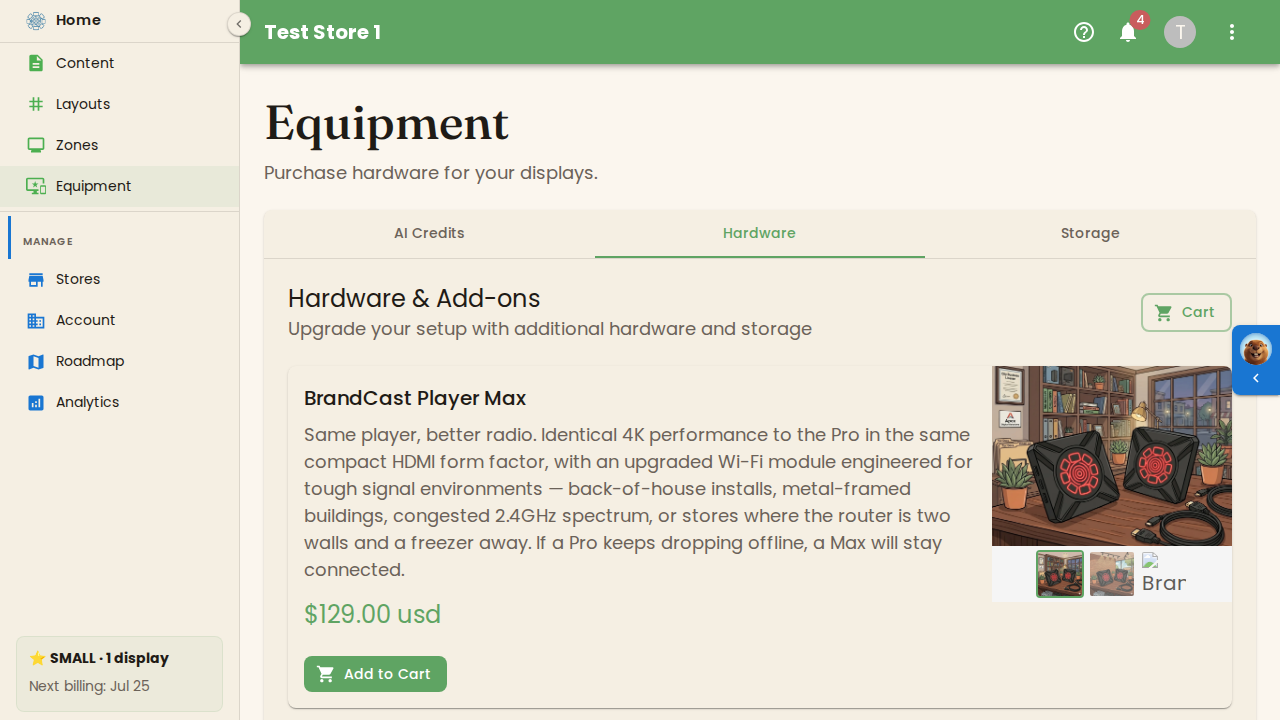
Section titled “Hardware”The BrandCast Player is the sole hardware option — a compact 4K HDMI player that connects to any TV and runs your content 12–18 hours a day. Pair in 60 seconds, then manage everything remotely. Built on commercial-grade hardware (4GB, X96M200-class) rated for 70,000+ hours.
| Player | Price |
|---|---|
| BrandCast Player | $129.00 |
Storage
Section titled “Storage”Additional storage capacity for your media library, sold in fixed increments:
| Add-on | Price |
|---|---|
| Storage (1GB) | $1.00 |
| Storage (5GB) | $5.00 |
| Storage (10GB) | $10.00 |
Product Cards
Section titled “Product Cards”Each product is shown as a card with:
- Product name — for example, BrandCast Player or 150 AI Credits
- Description — what the product is and what it includes (hardware cards carry a full description; credit and storage packs may show “No description”)
- Price — displayed per item (for example, “$99.00 usd”)
- Add to Cart button — adds the item to your cart
- Product image — click the image to open a larger preview
Cart & Checkout
Section titled “Cart & Checkout”The Cart button sits at the top of each tab and shows a badge with the number of items currently in your cart.
- Browse the tabs and click Add to Cart on the products you want.
- Click the Cart button to open the Shopping Cart dialog.
- Review your items, then click Checkout to complete your purchase. (When the cart is empty, the dialog shows “Your cart is empty” and the Checkout button is disabled.)
- Click Continue Shopping to close the cart and keep browsing.
What’s Next?
Section titled “What’s Next?”- Plans & Pricing — Review your subscription plan and features
- Pairing Devices — Connect a player to a display record