
Managing events and event sources
The Events tab brings all of your events into one place. Connect calendar feeds, add one-off events manually, organize them with tags, and then display them on your digital signage. Tags let you show different events on different displays.
Where to find it
Section titled “Where to find it”Events live inside the Content Hub, not in a top-level sidebar item:
- Click Content in the sidebar navigation.
- Open the Events tab.
The tab is organized into three collapsible sections — Sources, Tags, and Events.
What are event sources?
Section titled “What are event sources?”Event sources are connections to calendar feeds that automatically sync events into your account. Think of it as a central hub for all your calendar data:
| Feature | Description |
|---|---|
| Unified storage | All events from all sources land in one shared list |
| Tag-based filtering | Use tags to show specific events on specific displays |
| Automatic updates | Each source re-syncs on its own interval (30 minutes by default) |
| Multiple sources | Connect as many feeds as you need |
Adding an event source
Section titled “Adding an event source”- In the Sources section, click Add Source.
- Choose a Source Type such as iCal Feed and Employee Milestones.
- Fill in the fields for that type (below) and click Add Source.
iCal feed
Section titled “iCal feed”iCal (also called ICS) is a standard format supported by Google Calendar, Outlook, Apple Calendar, and most other calendar apps.
- Select iCal Feed as the source type.
- Enter a descriptive Name (for example, “Team Calendar” or “Store Events”).
- Paste the Calendar URL — the
.icsfeed URL from your calendar service. - Pick a Default Color for events from this source.
- Choose a Sync Interval (how often the feed re-syncs; 30 minutes by default).
- Click Add Source.
- Google Calendar: Settings → Calendar settings → Integrate calendar → Secret address in iCal format
- Outlook: Calendar settings → Shared calendars → Publish to ICS
- Apple Calendar: Share calendar → Public Calendar
Employee Milestones
Section titled “Employee Milestones”This source generates events automatically from an employee directory you maintain in the dialog — no external feed needed. After selecting Employee Milestones, you can:
- Toggle Birthdays and Work Anniversaries on or off.
- Set a Birthday Color and Anniversary Color.
- Customize the message templates — use
{name}for the employee’s name and{years}for years of service(for example, "Happy Birthday, {name}!"). - Set Days Ahead (how far out to generate events) and Max Events.
- Add employees with Add Employee.
Managing event sources
Section titled “Managing event sources”Viewing source status
Section titled “Viewing source status”Each source card shows its name, type, status (Active/Inactive), sync result, event count, sync interval, and the last sync time.
Syncing events
Section titled “Syncing events”Each source re-syncs automatically on its interval. To force an immediate sync, click Sync Now (the refresh icon) on the source card.
Editing a source
Section titled “Editing a source”Click Edit (the pencil icon) on a source card to update its name, URL (iCal only), color, or sync interval. Click Save when done.
Deactivating or deleting a source
Section titled “Deactivating or deleting a source”To temporarily stop syncing without losing events, click Edit and turn off the Active toggle, then click Save. Turn it back on the same way to resume.
To permanently remove a source and its events, click Delete (the trash icon) on the source card.
Warning: Deleting an event source removes all of its synced events permanently. This cannot be undone.
Working with tags
Section titled “Working with tags”Tags let you organize events and control which ones appear on each display. They are managed in the Tags section of the Events tab.
Creating a tag: In the Tags section, click Add Tag, enter a Tag Name and a Color, then click Create.
Applying tags: Add tags to individual events when you create or edit them (see below). Each source also gets an automatic system tag, so you can filter a display by source without tagging events yourself.
Filtering events on a display: When you add an Events content item to a layout, its config panel lets you choose:
- Event Source — show events from a single source, or all sources
- Include Tags — only show events that have these tags
- Exclude Tags — hide events that have these tags
- View — Day, Agenda, Week, or Month
- Celebration Events — show or hide birthdays/anniversaries, and pick which celebration types appear
Example use cases
Section titled “Example use cases”| Display | Include tags | Exclude tags | Purpose |
|---|---|---|---|
| Lobby TV | meetings, announcements | personal | Show company events only |
| Break room | birthdays, social | client-meetings | Show team social events |
| Manager display | (none) | (none) | Show everything |
The events list
Section titled “The events list”The Events section shows every event — synced from sources and added by hand — in one list. You can:
- Filter by a start and end date, filter by tags, or search by keyword.
- Click Add Event to create an event manually. A manual event has a Title, optional Description and Location, an All-day toggle, a Start Time and optional End Time, and Tags.
- On each event, use Edit to change it, Archive to hide it from displays, or Promote with Twig to generate promotional content for it.
Adding events content to a display
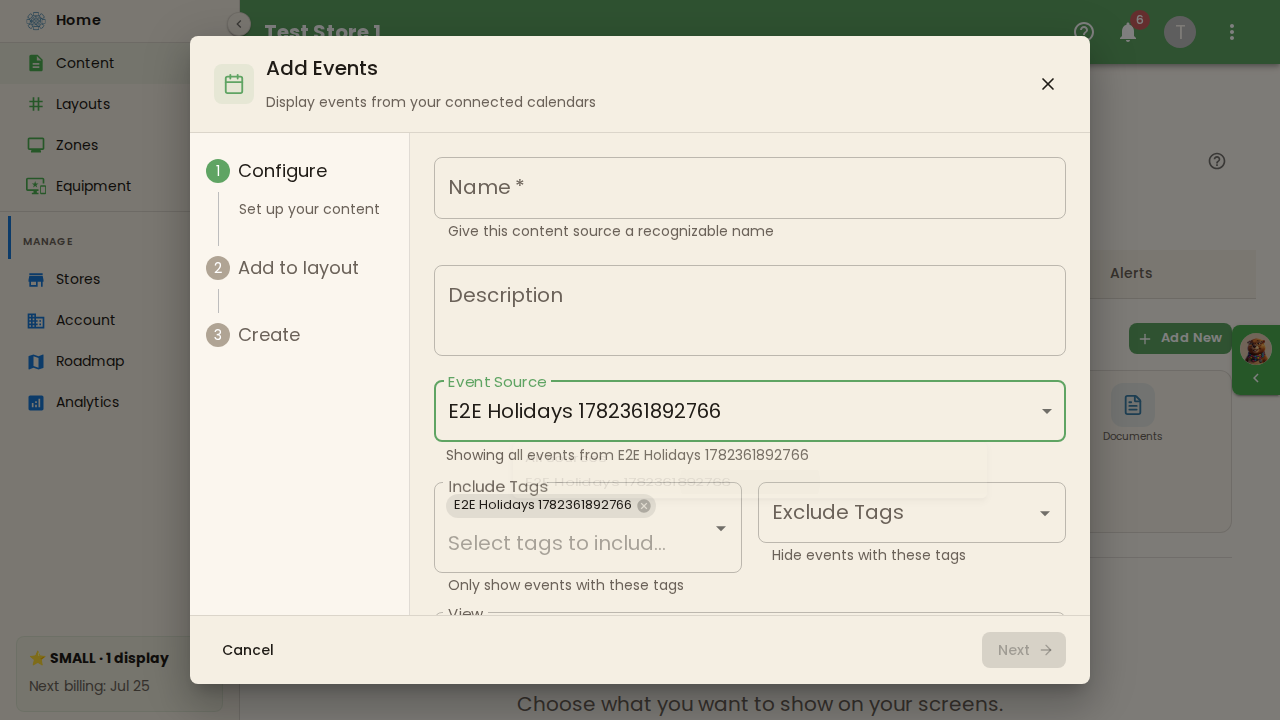
Section titled “Adding events content to a display”To put events on a screen, go to Content (/admin/content) > Add New > Events. This opens an Add Events dialog containing an Event Source dropdown that lists the sources you’ve already synced in the Events tab. Select a source, choose a view, and finish the wizard.
How events appear on displays
Section titled “How events appear on displays”The Events content item renders your events in one of four views, set in its config panel:
- Day — today’s events as a simple list
- Agenda — today’s events, hour by hour on a time axis
- Week — this week at a glance
- Month — a full month calendar grid
Each event shows its title, start and end time, location (if provided), and a color based on the source it came from.
Troubleshooting
Section titled “Troubleshooting”Events not appearing on the display. Check the sync status on the source — look for error indicators. Verify the iCal URL is correct by pasting it into a browser. Check that the display’s Include/Exclude tag filters aren’t accidentally hiding the events, and confirm the chosen View covers the day or week you expect.
Sync errors.
| Error | Solution |
|---|---|
| 401 / 403 | For iCal, check the URL is still valid and the feed is shared/public. |
| 404 | The iCal URL has changed — edit the source and update it. |
| Timeout | Large calendars may take longer. Wait a few minutes and retry with Sync Now. |
| Parse error | The calendar file may be malformed — contact your calendar provider. |
Duplicate events. Check whether the same calendar is connected more than once from different sources.